
Efiling FAQs
If the details of the AOR are already available with the Registry then such AOR is only required to create a new password in the new efiling Portal by taking the following steps:
- On the login page, click on forgot password option;
- Enter your registered mobile number, enter captcha and then click on send OTP button.
- OTP will be sent on your registered mobile number;
- Enter the OTP and click ‘verify’ button
- Create new password
Once new password is set, the AOR can login by using his AOR code or registered mobile number or registered email id along with the new password.
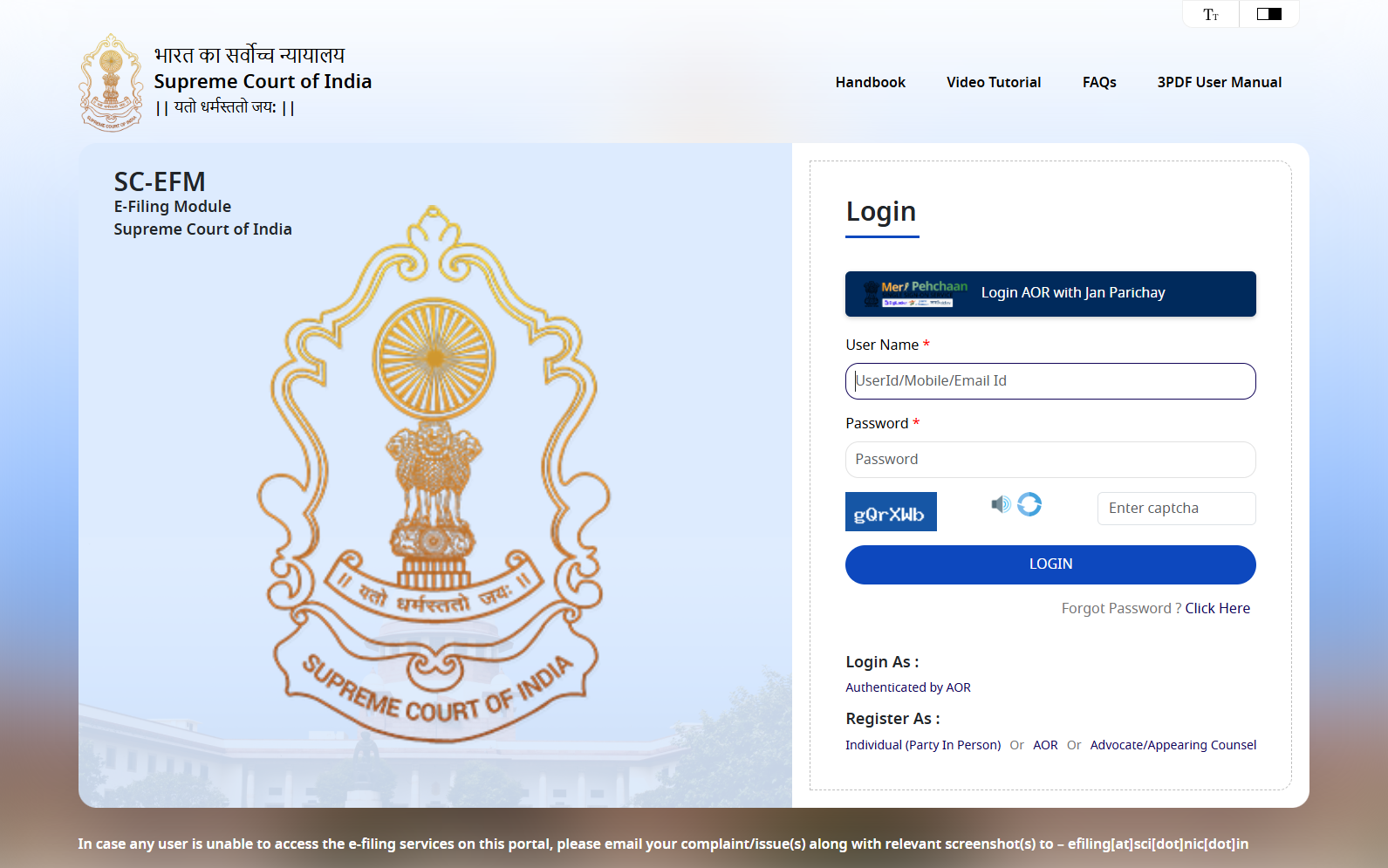
Please note: The password must be at least 8 characters long. It must also contain at least 1 Uppercase character, 1 lowercase character, 1 number, 1 special character each.
If your mobile number is not updated in records, it is requested to update your record by placing Specimen signature form available on www.sci.gov.in visit the ‘Record Room’ and get your mobile number updated in Records. Further, in case if your mobile number is already registered with a firm having another AOR code, it is requested to use a different mobile number to register yourself.
Post registration, an AOR can directly access the e-Filing portal to file petition, documents, Caveat etc… However in the case of Advocate their profile needs to be approved and activated.
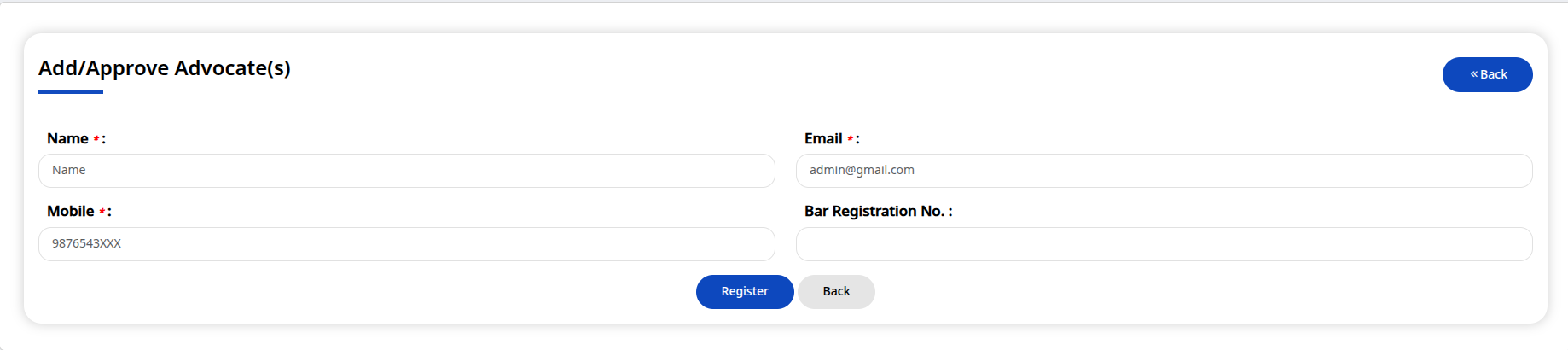
In case of registration as an Advocate, their profile needs to be approved by an AOR by going on the three lines menu and then clicking on the ‘Add Advocate’ image shown in the below screen.
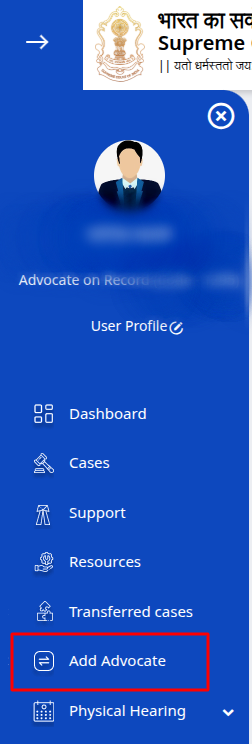
The concerned AOR will receive a notification with an OTP/ Code inside their eFiling profile. If the concerned AOR approves the profile of the concerned Advocate, login will be activated.
In the case of registration as Petitioner-in-Person (PIP), the account is automatically approved and activated.
Dashboard gives at-a-glance status of your cases which are soon to be listed under ‘My Cases’ head and your e-Filed Cases under the ‘eFiled Cases’ head. Further, you can view ‘Recent documents’ e-filed by you, ‘Incomplete filings’ and ‘Scrutiny Status’ of your cases i.e. whether at Defective Stage or Pending for Scrutiny. Screenshot attached as below:
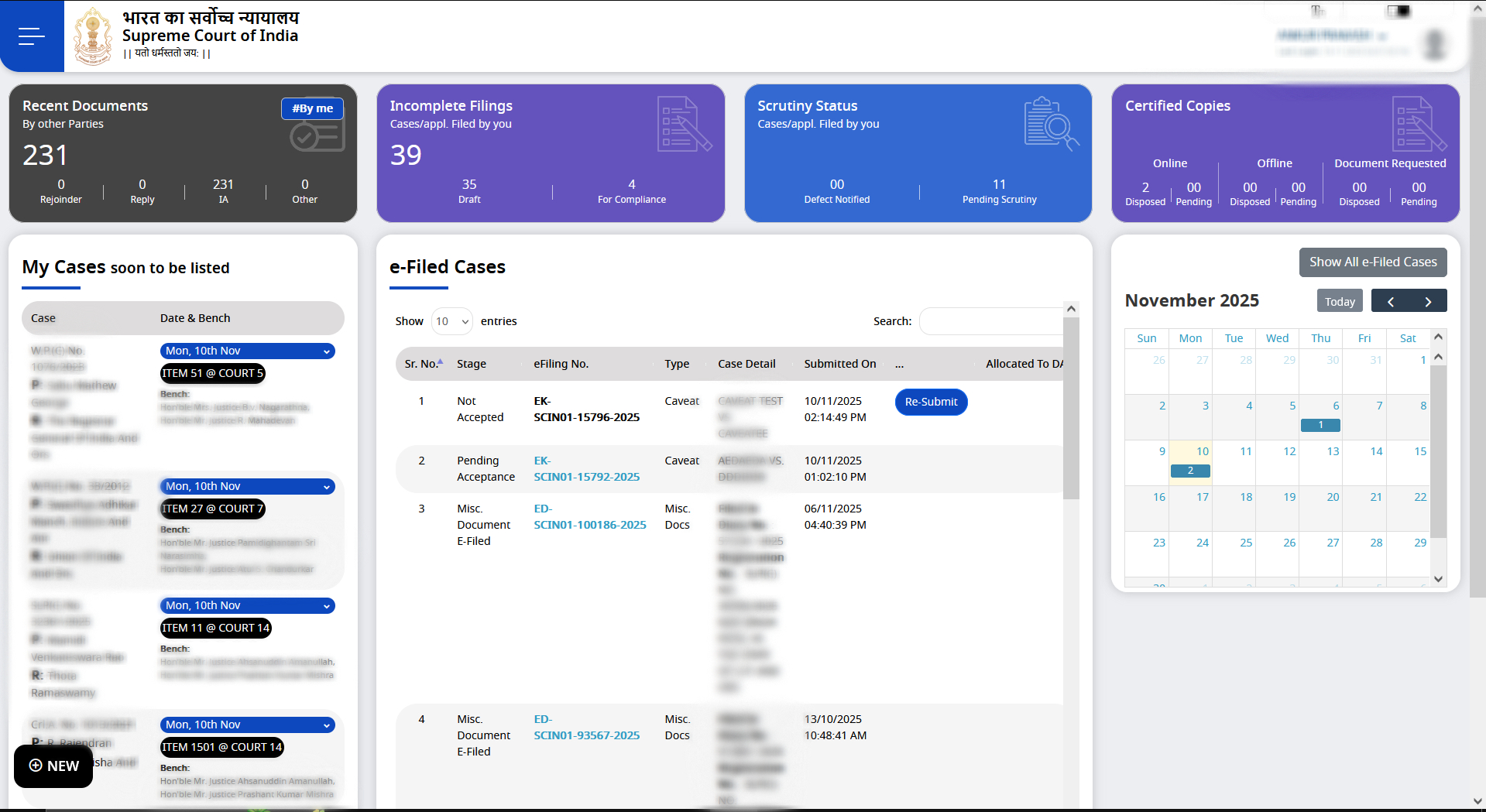
Dashboard provides details of cases which are to be listed cases in near future under the head “Soon to be listed cases"
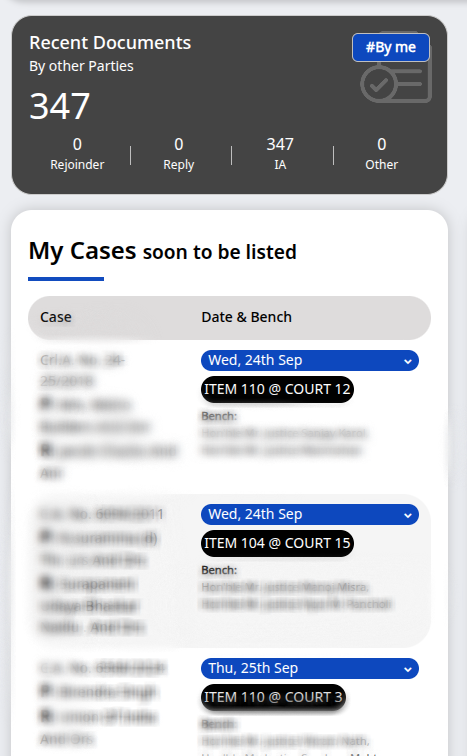
The profile can be viewed by clicking the user icon at the top right corner of the screen.The details of an AOR can be updated through Record Room Section of Supreme Court of India
The details of an AOR can be updated through Record Room Section of Supreme Court of India
You can change the password by clicking on “Change Password” after logging in below the user profile photo.
Any filed case is available for editing only before final submission. Once submitted, the case will not be available for editing. Please check whether you have already submitted the case.
No, you can fill in the details or complete the 9 steps according to your convenience. Also the details can be edited multiple times. The draft case gets saved in your cases list which can be further processed later. Please ensure that all the details are correct before final submission. After Final Submission, the case details cannot be modified.
No. Advocates login provides facility to only view the case details or the cases of his AOR. The case can be filed or refiled only through the login of the AOR.
Only .pdf file format is allowed for uploading a petition through e-Filing Portal. The maximum file size that can be uploaded is 50 MB. If pdf file size is more than 50MB, file may split into parts for meeting the requirement.
As of now it is not mandatory to sign the petition digitally.
It is requested to refer to the Supreme Court Rules, 2013 for the same which are available on the website under the bottom panel of the home page of Supreme Court website.
To finally submit a case to the court, click on the ‘Submit’ button. History of all the activities that have been completed through the e-filing system for all the cases will be displayed under the ‘e-Filing History’ tab. The facility to view the uploaded petitions, court fee payment, in respect of the respective case is available under the e-Filed Cases report. Advocate can verify that all the details, court fee if any is in order under the view tab.
If everything is in order and completed, the case can be finally submitted. Once a case is submitted, the diary number is automatically generated and the case gets transferred to the Registry for further action required.
After submission, the court may take some time to verify the case. You can view the status by clicking on ‘Scrutiny status’ button in the dashboard. If the Scrutiny process is complete, your case will be shown under the defects notified button and you may cure your defects in the case using the ‘Cure defects’ option. You can also view the name of the Dealing Assistant to whom your matter has been marked for scrutiny.
Provision is made to make online payment towards Court Fees and allied charges through Stock Holding Corporation. The facility to pay the Court fees by debit card, credit card or UPI or Net Banking etc. has been incorporated.
Court fees once submitted successfully gets automatically locked and is transferred to the Consolidated fund of India. Hence, the amount once paid successfully cannot be refunded.
No. Court fees gets locked automatically once submitted and cannot be used for another matter.
If the transaction was done through the ‘payment’ menu, click on ‘Fee Paid’ tab, details of all the transactions will be provided here. If there was some issue during the payment, you will see the payment status will be ‘pending’. You need to wait for atleat 30 minutes before making another attempt of payment. If the status is still pending after 30 minutes, you need to repeat the payment in such cases after confirming from your bank that the amount so was not deducted from your account. If the payment was successful, ‘Success’ status is displayed.
Any submitted application can be modified before final submission. Once the application is submitted, it cannot be modified.
Yes, the AOR can file an IA for any case. The prerequisite is that the case must be pending in the account of the cases of that AOR.
No, existing cases can not be added in the account of SCeFM but advocates can file Miscellaneous documents/ Interlocutory applications in physically filed cases through SCeFM.
No, cases in the portfolios of mobile apps cannot be imported in SCeFM.
Defects notified in the matters or defects cured in ICMIS are reflected automatically in every 15 minutes through CRON service in SCeFM.
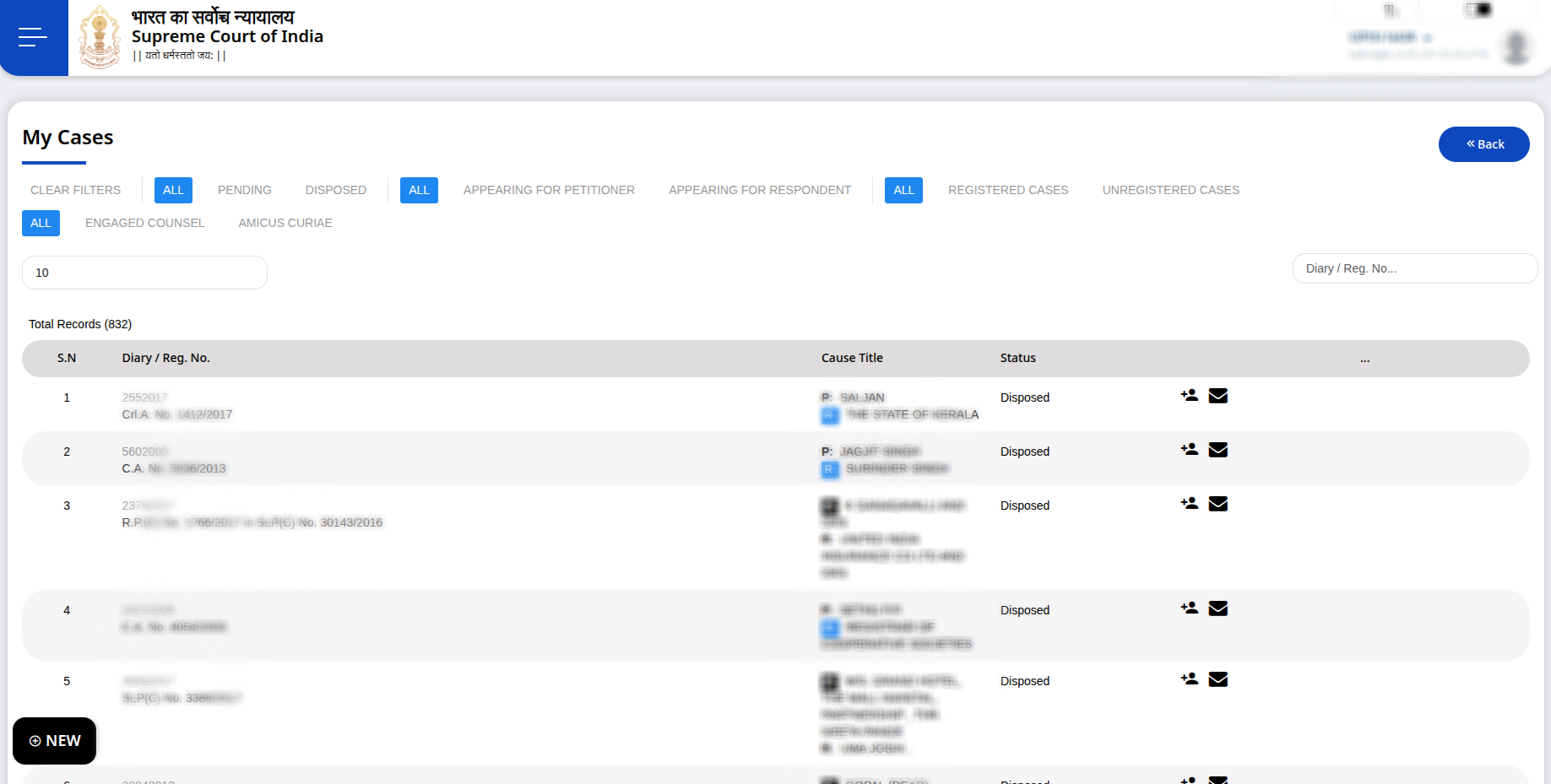
You can view your cases under ‘My Cases’ head and your eFiled Cases under the ‘eFiled Cases’ head. Multiple filter options are provided for searching cases. You may search the case using Case number, eFiling number, Cause title, filing stage of the case or other options under ‘Search’ box. All the cases matching the search criteria will be displayed. You may click on the efiling case number to view further details of the case.
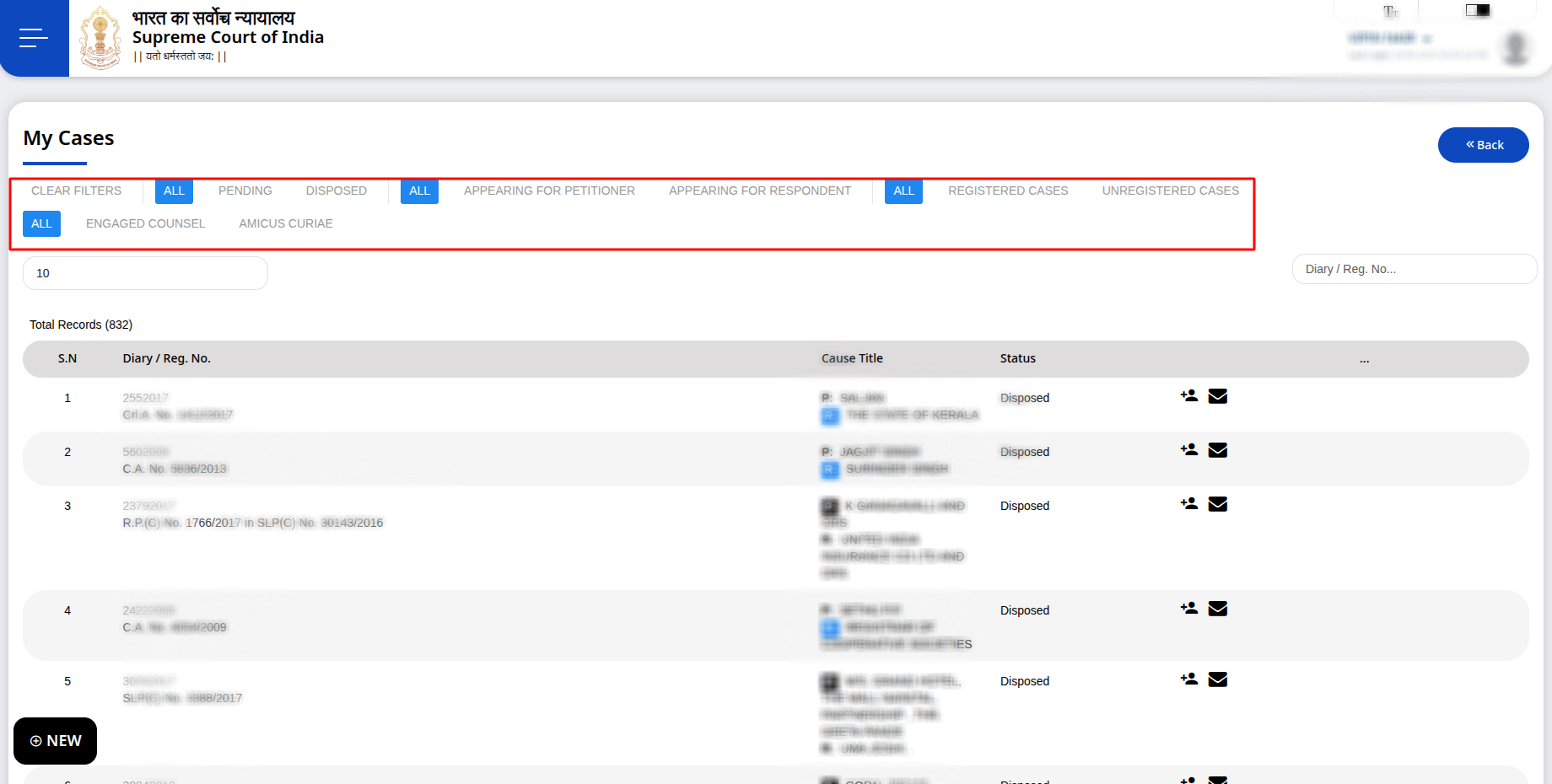
Cases cannot be removed from the ‘My Cases’ list.
- Change Password
-
My Cases: Cases can be searched by using different filters like Pending matters, Disposed matters, Registered Matters, Unregistered Matters
-
To add and approve an advocate to view the cases filed on behalf of the AOR
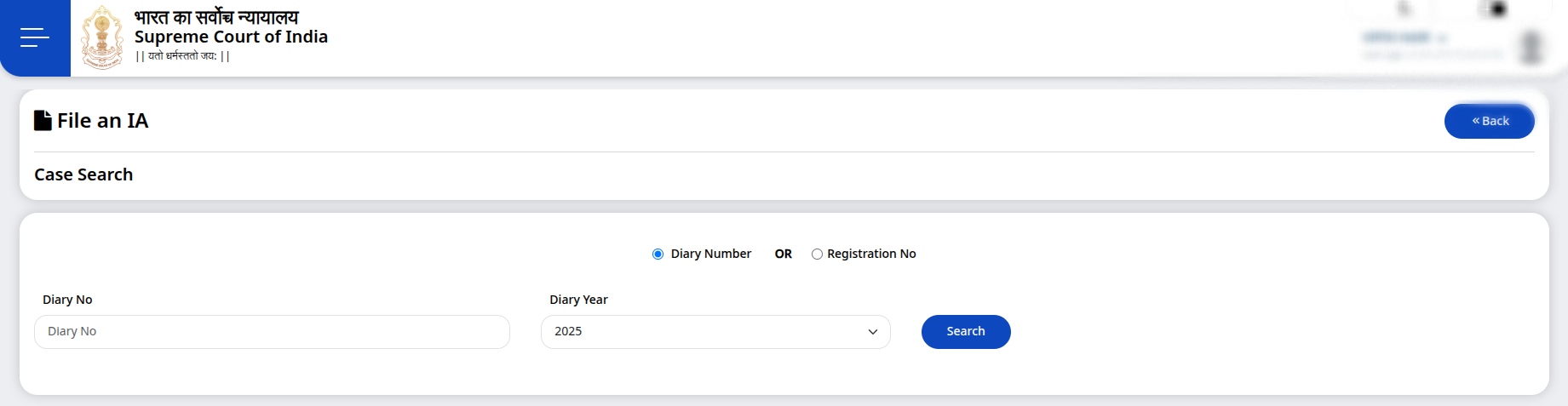
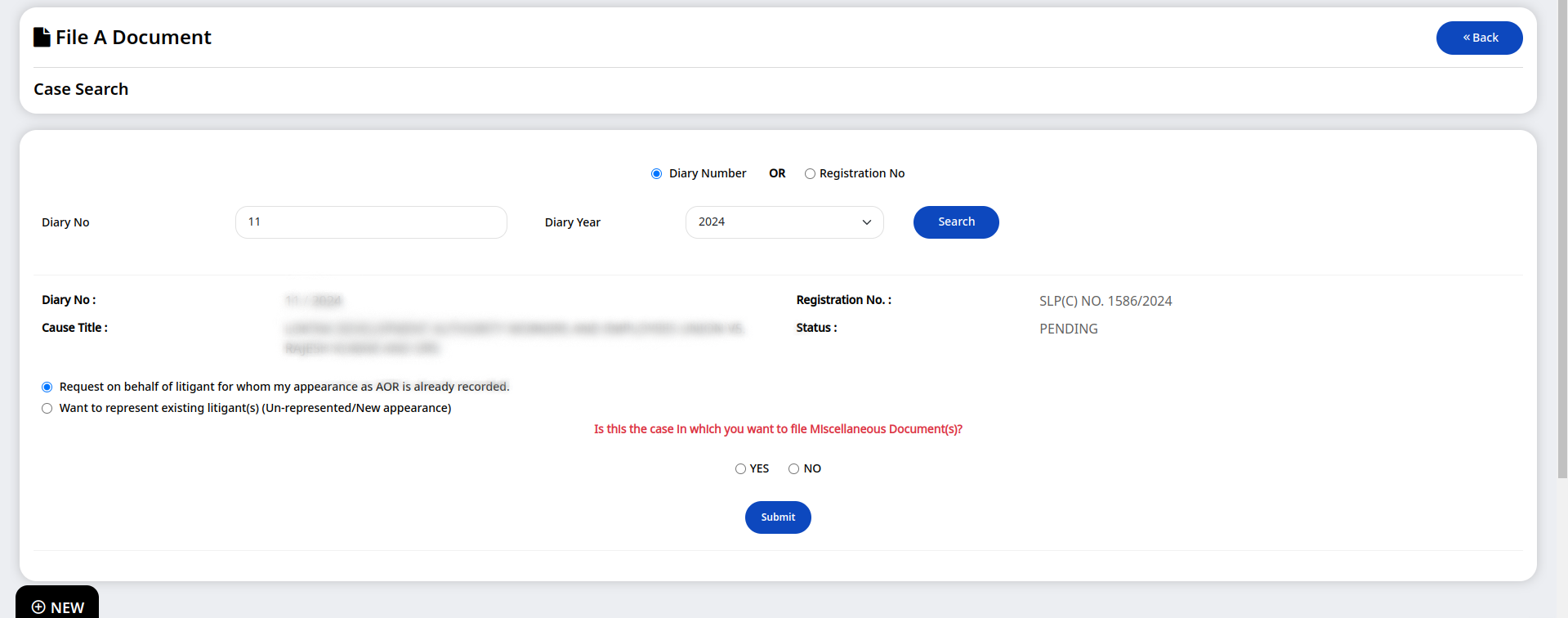
The initial process for filing IA and filing Misc. documents is exactly same. Therefore, user can follow exact steps for both. The user needs to enter the Diary number in which the IA or document is to be efiled as in the screenshot below:
The portal then checks the status of the matter whether pending or disposed. If disposed, the portal will not allow the user to upload documents in the matter. If the matter is pending, then under the index tab, select the particular document type and then upload the relevant document required to be uploaded. The Index tab is also to be filled in so that all the documents contained in the pdf so uploaded are updated in the Index. After submission of the Court fees, the IA or the Misc. Document will reach the Miscellaneous Dak Counter for further processing the same.
By default ‘Caveator is - an Individual’ is kept selected. A user is required to fill the requisite details about the caveator whether it is an Individual, Central Government, State Government or other organization. The field marked with red asterisk (*) are mandatory.
There are six steps which are to be completed for efiling a Caveat as per the screenshot below:
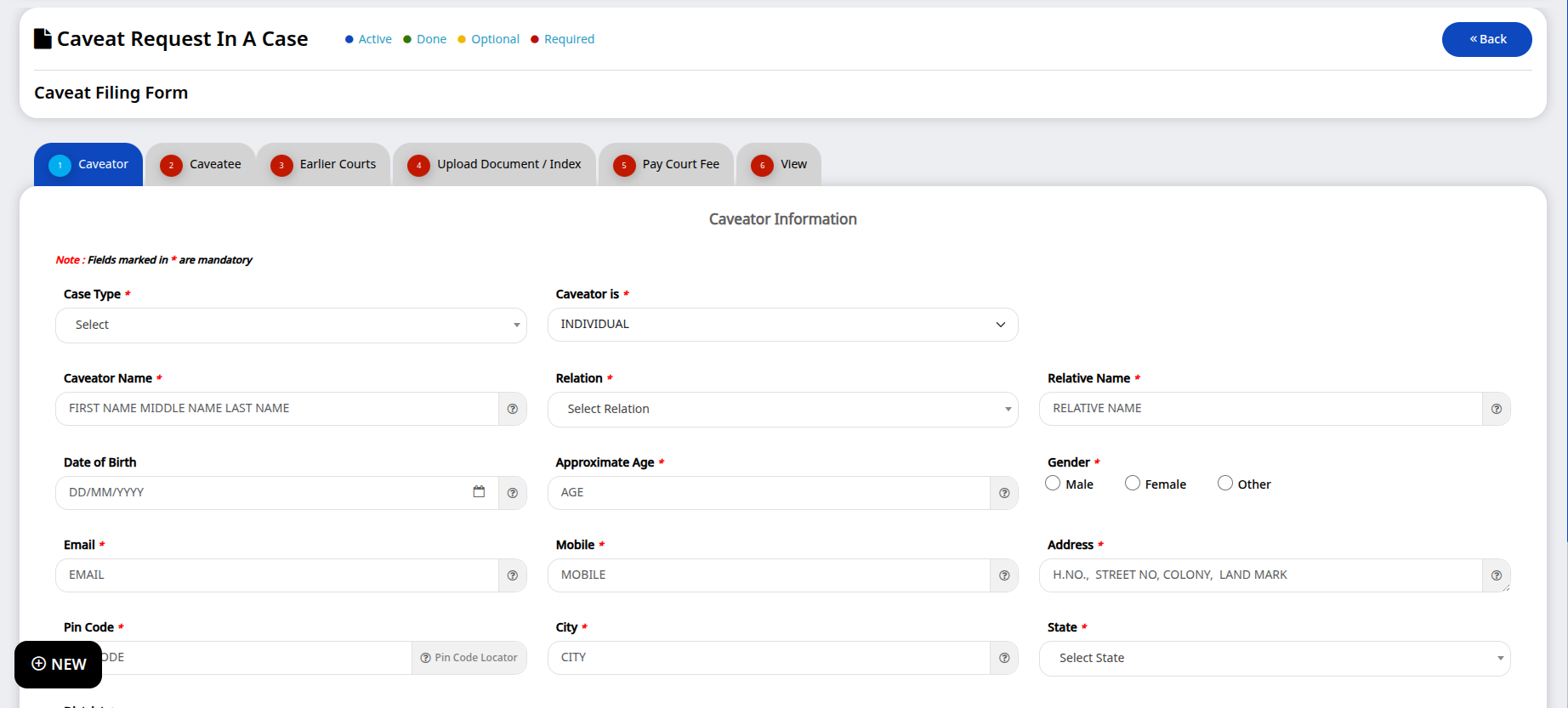
After completing the steps, click on the Submit button at the top and your Caveat will be submitted. In case of any defect raised by the Registry, you can view the status of the same under the ‘For Compliance’ menu. The defects are then to be removed and then to be resubmitted by uploading the defect free Caveat in the Upload Documents/ Index tab and then click on ‘Final Submit’ button.
Yes, an Intervenor is allowed to file an application of intervention using the ‘IA’ option. The name of the Intervenor is to be entered and then may upload the relevant documents along with the court fee payment. The application then gets submitted and sent to the Miscellaneous Dak Counter for further processing.
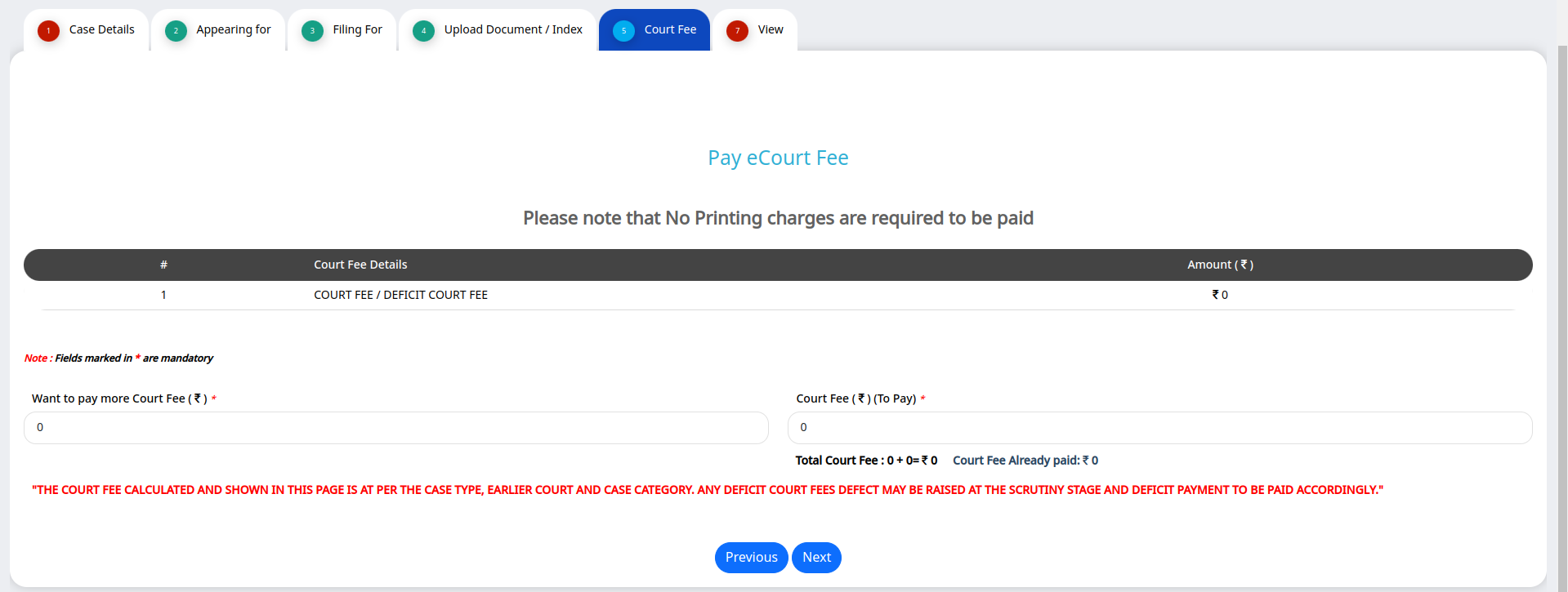
For the payment of deficit Court fees in unregistered matters, the AOR/PIP can enter the amount under ‘WANT TO PAY MORE COURT FEE’ option and submit deficit Court fees.
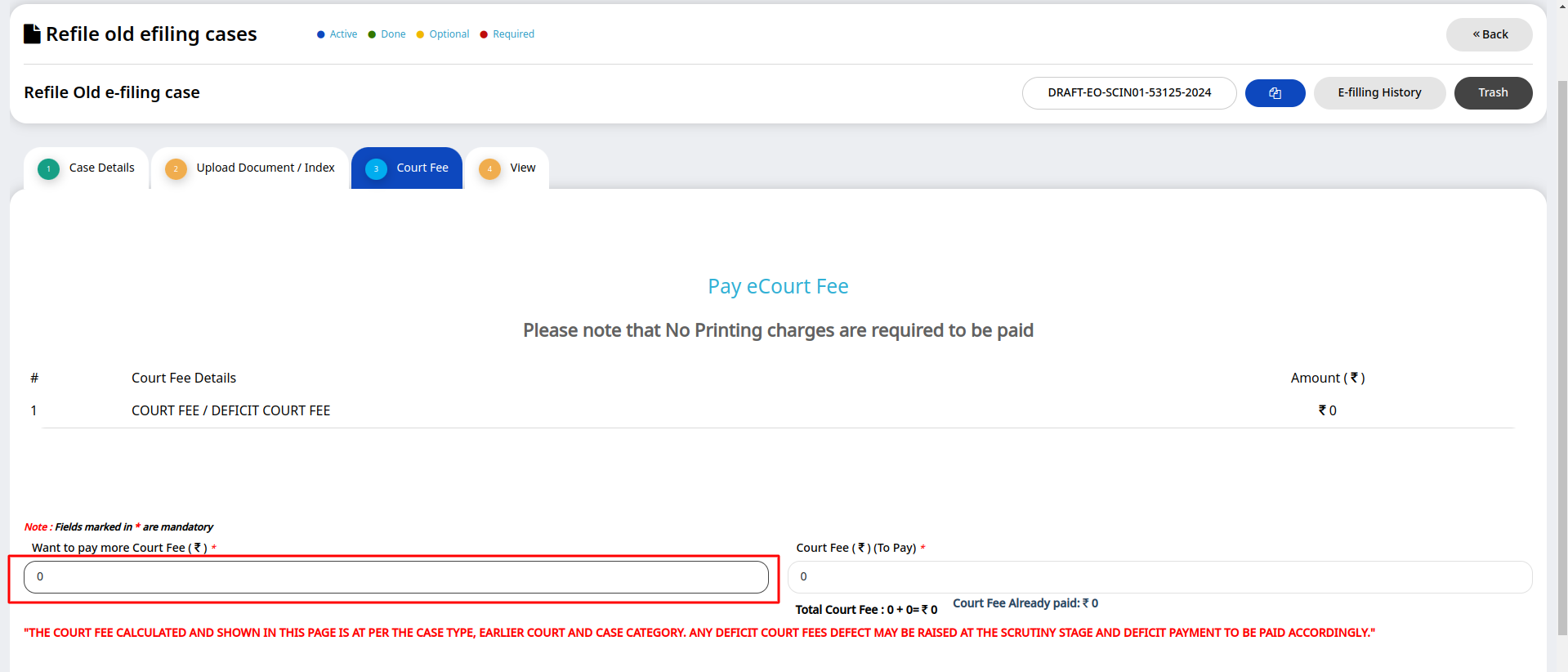
Further, for registered matters, the user should select ‘Misc. Doc’ option under NEW tab to pay deficit Court fees. Then the following steps have to be followed:-
Step 1: Enter Diary Number / Year after Selecting ‘New’ option. Thereafter, relevant information have to be provided in appropriate fields on the page. After filling up the information, submit the page.
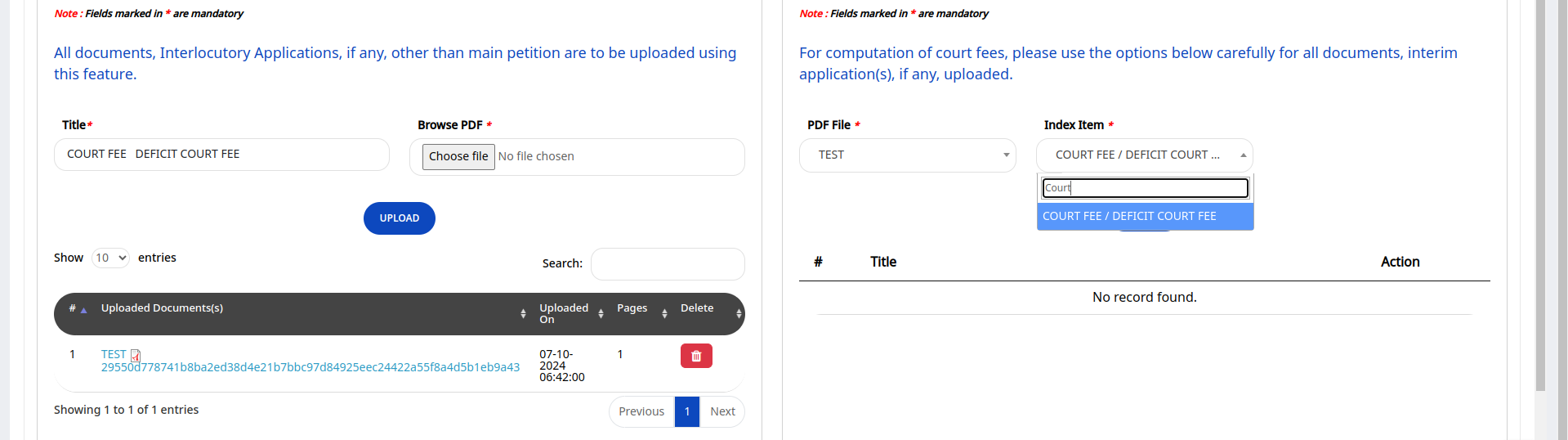
Step 2: Select the party name by clicking on the checkbox.
Step 3: Now, upload the document by mentioning details of deficit Court fees to be paid and select ‘Court Fee’ in the ‘Index Item’ drop down. Now click on ‘Add’, then click ‘Next’ as per image below.
Step 4: Enter the deficit Court fee amount in the box besides ‘want to pay more court fee’ option and submit
E-Copying FAQs
b. Advocate authorized by AOR,
c. Arguing Counsel,
d. Party-in-Person.
b. For other users, if they are not already registered with eCopying, they need to go through process of verification of identity besides, they need to provide valid mobile number and e-mail. Once OTP is verified, link will be sent to entered email id which will re-direct user to portal.
b. In case of Appearing Counsel, his/her appearance on the respective date must have been recorded in the Integrated Case management and Information System (ICMIS), particularly for the case for which request for e-copy is made.
c. Appearing Counsel whose data is not recorded in the Integrated Case management and Information System (ICMIS) will have to go through the process of verification.
b. In case of Appearing Counsel or party-in-person not yet registered with the system, they may have to establish identity. They can choose any method of eKYSH (Know your Stake Holder) i.e. offline Aadhar based verification or uploading identity proof which will be verified by Supreme Court Registry.
c. Registered mobile number, e-mail ID will be mandatory for all types of applicants, AOR code in case of AOR, any valid photo identity card with registered mobile number and e-mail id for Appearing Counsel.
b. AOR if not already registered may have to get himself/herself registered as per procedure prescribed under the Supreme Court Rules of 2013.
b. Certified hard copy may be delivered at the counter or by speed post on the given mailing address.
b. Copies of the documents shall be given within seven days from the date of registration of the application if such document is available in the Copying Section or seven days from receipt of documents from the concerned Branch, if requisition needs to be send.
b. Postage is charged as per standard API provided by India Post. Postage includes standard postal charges applicable in India for speed post. Postage would differ on weight and distance.
a. Resident Name
b. Download Reference Number
c. Address
d. Photo
e. Gender
f. DoB/YoB
g. Mobile Number (in hashed form)
h. Email (in hashed form)
Aadhaar Paperless Offline e-KYC data is encrypted using a “Share Phrase” (password given by Aadhar user while downloading zip file) provided by the Aadhaar number holder at the time of downloading which is required to be shared with agencies to read KYC data.
b. Enter your UID or VID
c. Enter OTP or TOTP received on registered mobile number
d. Enter your password before downloading. (four number or characters)
e. Download zip file.
f. Upload the very zip file on eCopying portal
g. Enter the password which you entered while downloading the file.
h. Follow the process as given on eCopying portal.
a. Download the document and open it with Adobe Reader.
b. Click on Signature Panel at the top or the eSign appearance.
c. When ‘Signature Validation Status’ opens, click ‘Signature Properties’.
d. In ‘Signature Properties’ window, click ‘Show Signer’s Certificate’.
e. You will be redirected to ‘Certificate Viewer’ window. Click the tab named ‘Trust’.
f. Click ‘Add to Trusted Certificates’. Click ‘OK’ in the pop-up that follows.
g. You will next see ‘Import Contact Settings’ window. Check (Tick) the boxes provided before Certified documents and the three other options that follow it. And click ‘OK’ to continue.
h. You will be redirected to ‘Certificate Viewer’ window, click OK at the bottom.
i. Click ‘Validate Signature’ in Signature Properties window. And then click ‘Close’.
j. Now your eSign is complete. Your eSign will have a Green Tick mark which means it is legally valid.
Physical Hearing FAQs
Appearance FAQs
Go to the Cause List menu.
Click the green “Click” button under “For Appearance”.
Follow these steps:
Step I: Select from the Master List of previously added advocates.
Step II: Add the names of advocates appearing.
Step III: Review the list of added advocates.
Step IV: Check the “I Certify” box.
Step V: Click Final Submit.
You will then receive a confirmation message showing successful submission.
Ensures faster and accurate recording of appearances.
Reduces manual work by the Registry.
Allows online verification via OTP.
Enables advance submission of appearance slips.
Provides a searchable record of all previous submissions.